Why I had to fix NavTechDays

This is the tale of how a small idea, became a week long project, but informative/instructive one.
Just a heads up, this post isn’t how I normally make them, so may contain really bad jokes and stupid references. Plus this will actually contain a “why”, which goes against my blogs motto. :)
A few weeks ago, with NavTechDays approaching rapidly, I started wondering: “How many were attending and from which countries, this year?” Multiple reasons for this.
First, how fast do I have to get to the halls to get the seats with a table for my laptop?
Secondly, how many do I have to outwit, to get ahead in the queues for the beer? :)
Easy, there is a fairly comprehensible list of attendees on the official NavTechDays website. I couldn’t just copy/paste, as the country info were located in a tag, and everyone knows the germans drink like mad-men. So I Googled “.net webscraper”, grabbed the first hit I got, fired up a Business Central Dev Env and started coding.
Let the coding begin
The .Net library I found were HTML Agility Pack. The documentation were a bit sparse, but that didn’t frighten me. The example on the frontpage even made it look super easy.
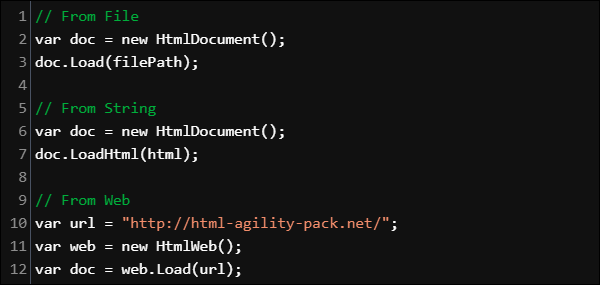
When using the web example, it ended up being very similar i C/AL (Check this blog post on how to use NuGet packages): HAPHtmlWeb := HAPHtmlWeb.HtmlWeb; HAPHtmlDoc := HAPHtmlWeb.Load(URL);

By using https://www.navtechdays.com/2018/attendees/last_name/ as the URL, I now had the entire page searchable.
I thought: “The attendees are listed in a table, I just need to find each line and read them one by one for each page.” I opened the page in Chrome and entered Developer mode (F12) and browsed into the HTML until I found the data I needed.
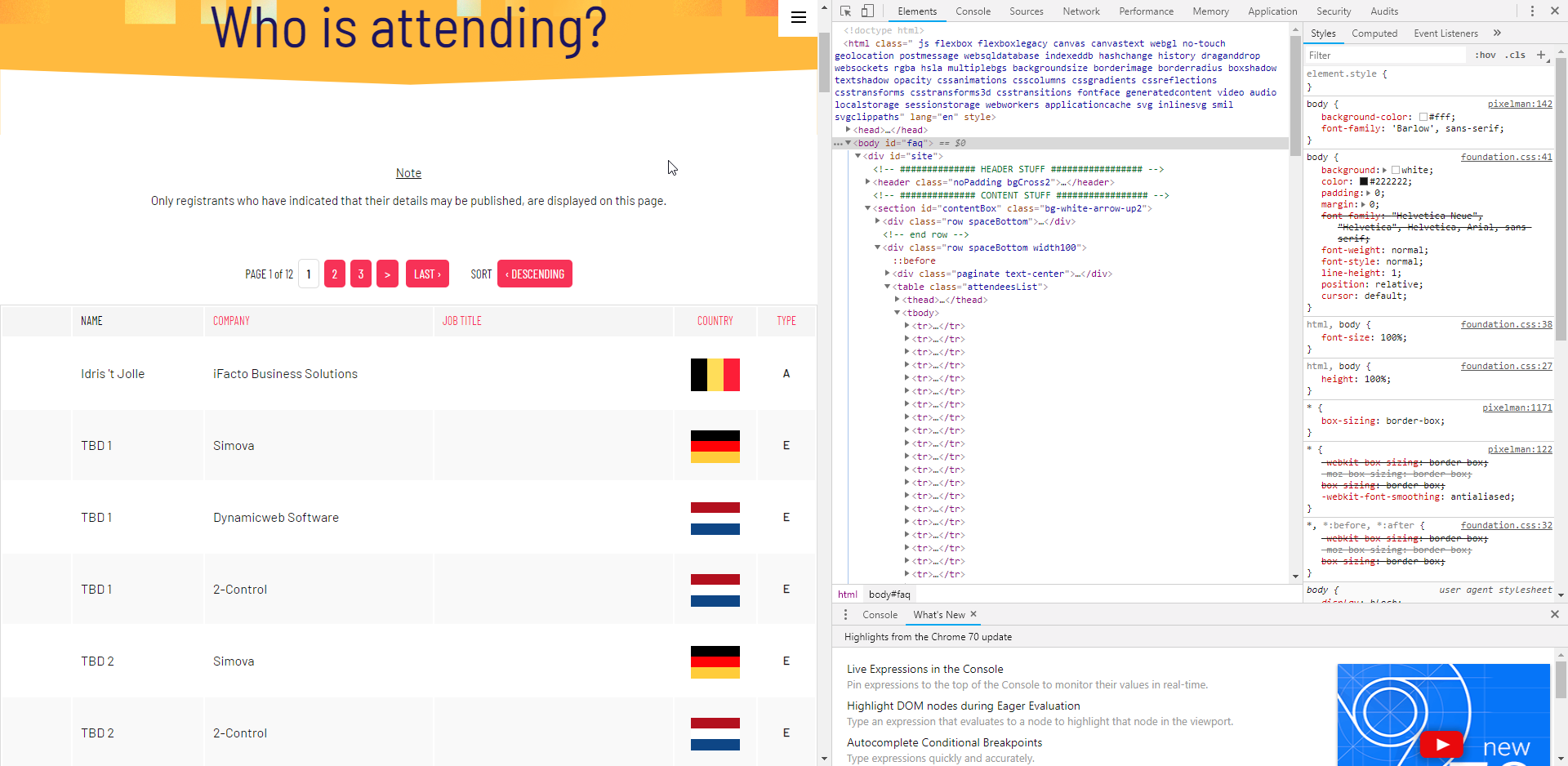
Developer mode
There they were, table row after table row . Great, just right click the first and get the XPath selector for it.
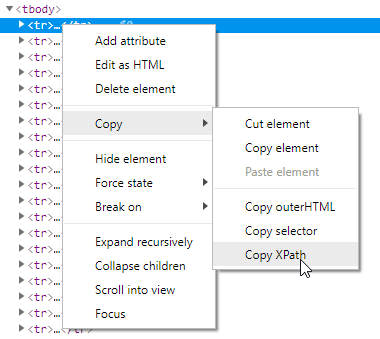
Xpath selector
This gave me the following XPath selector. For more info on XPath, check out this page.
//*[@id="contentBox"]/div[2]/table/tbody/tr[1]I removed the last [1] and valided it in Chrome. Just press Ctrl+F and paste the Xpath, then Chrome will show you the resulting amount of nodes. Here it showed me that I would get 100 lines on this page. Perfect, there is 100 attendees per page.
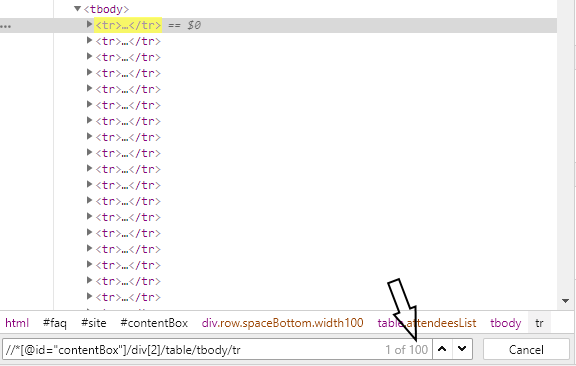
Easy…
Enter this into the code:
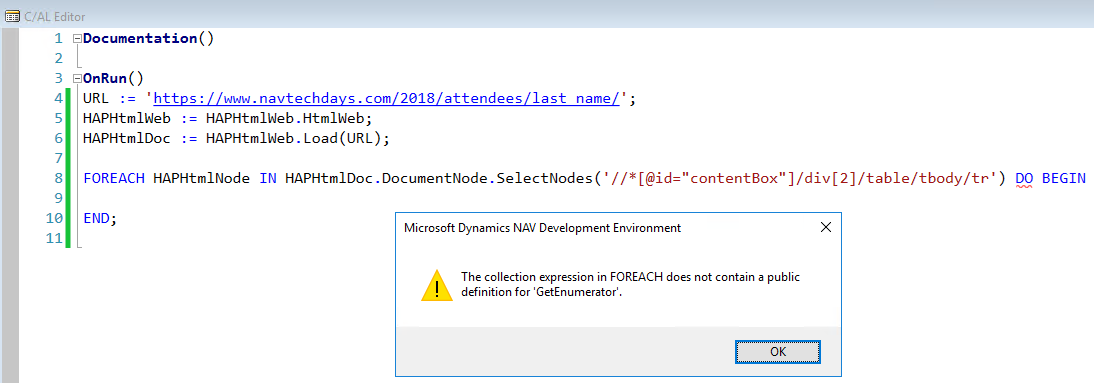
Next bump on the road.
Took me a while before I remembered the old IEnumerable way of doing things.

So far, so good.
But no matter what I did, I never got more than the first attendee. I thought my Enumerable code were bugged, my Xpath were wrong, I wasted the most of a night, trying to figure out where I had messed up. Finally I said to myself: “The code works, the problem must be elsewhere.”
The plot thickens
I opened https://validator.w3.org and entered the attendes URL. It said: 113 errors. A bit high, but not unusual. But when I browsed though the list I suddenly realized why my code wouldn’t work.
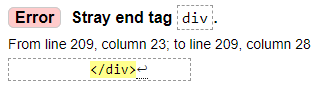
Line after line with this error.
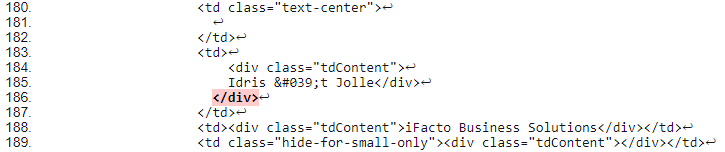
Orphan
So my code was fine, the webscraper just simply didn’t know how to handle the extra tag and just stopped, which is why I kept getting just one line.
Fixing the HTML
I search for a HTML sanitizer on Nuget and found this. Added that to the code but alas, I couldn’t get the VAR initialized. Tried every trick I had to make these parameters. The code just kept getting more and more bloated.
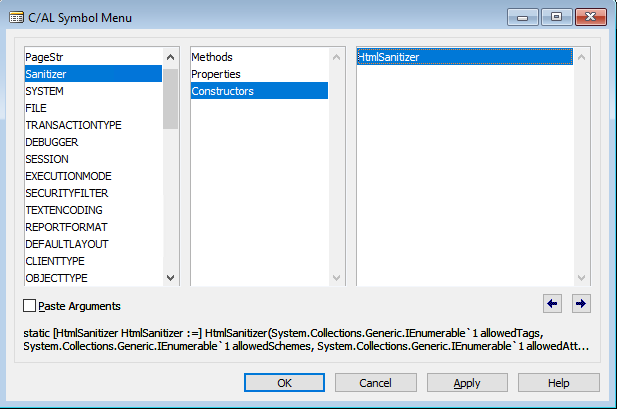
Azure functions to the rescue
I wondered if I had the syntax wrong, so tried it 1-to-1 in C# (Visual Studio 2017) and it worked. Well I had to learn Azure functions some day anyway, so this was as good a day as any.
Long story, short. (Way way to long a story)
I wont turn this into an Azure function tutorial, there are a lot of them on the web and the ones making them, have way more experience than me.
But some of the things I had to wrestle with were:
- IActionResult not wanting to return text/xml.
- My lack of knowledge regarding ASP.NET MVC.
- My Azure Function not wanting to start up. Had to delete it and upload again (Same code).
I ended up making this. A bit rough around the edges, but it works.
using System.IO;
using System.Threading.Tasks;
using Microsoft.AspNetCore.Mvc;
using Microsoft.Azure.WebJobs;
using Microsoft.Azure.WebJobs.Extensions.Http;
using Microsoft.AspNetCore.Http;
using Microsoft.Extensions.Logging;
using System.Net.Http;
using Newtonsoft.Json;
using System.Net;
using System.Text;

namespace FixNavTechDays
{

    public static class FixNavTechDays
    {

        [FunctionName("FixNavTechDays")]
        public static async Task<HttpResponseMessage> Run(
            [HttpTrigger(AuthorizationLevel.Function, "get", "post", Route = null)] HttpRequest req,
            ILogger log)
        {

            string page = req.Query["Page"];

            //Need this to fetch webpage
            var client = new WebClient();

            //Setup Sanitizer and allow class to remain in HTML.
            var sanitizer = new Ganss.XSS.HtmlSanitizer();
            sanitizer.AllowedAttributes.Add("class");

            string URL = "https://www.navtechdays.com/2018/attendees/last_name";
            if (page != "0")
            {
                URL = URL + "/P" + page;
            }

            //Create easy to use response with valid HTML.
            string sanitized = sanitizer.Sanitize(client.DownloadString(URL));

            return new HttpResponseMessage(System.Net.HttpStatusCode.OK)
            {
                Content = new StringContent(sanitized, Encoding.Default, @"text/html"),
            };

        }
    }
}
It take a parameter and translates that into an URL, with which it then request the page and sanitize it.
The final C/AL
With this over I finally had some data I could iterate. I changed the XPath a bit, so I got each column for each row one by one. Could have used Xpath’s specific for each, but had already used way more time on this post than I had hoped. :) So ended doing it quick and dirty.
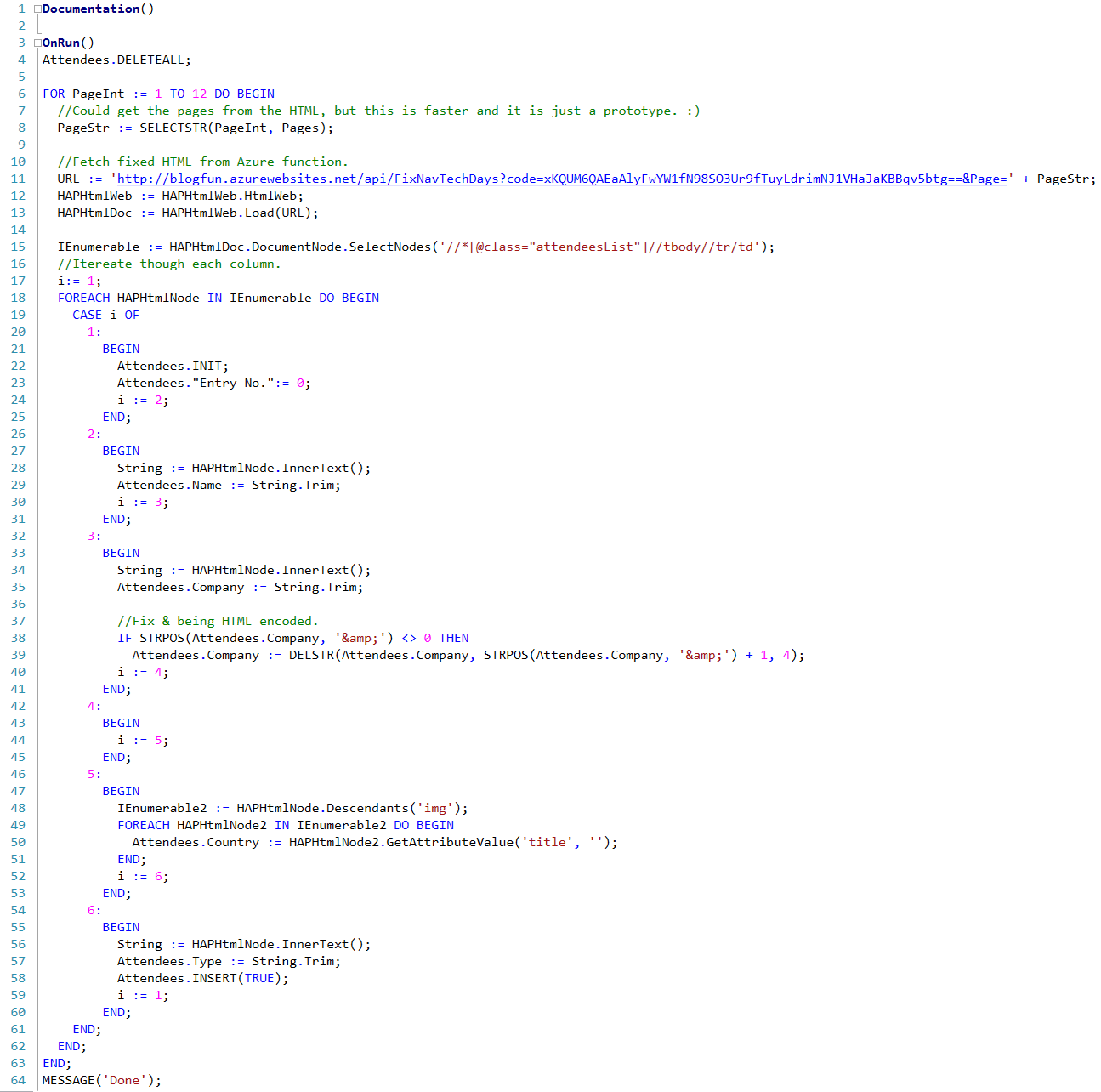
Yep, that is the real API key. The API will be up until NavTechDays 2018 is over. Check it out.
There were a few things I had to fix also, the strings had a lot of padding and country were only mentioned in an attribute. So had to use a bit of String.Trim and GetAttributeValue.
(Link to the entire C/AL and Azure Function code at the end.)
The Result
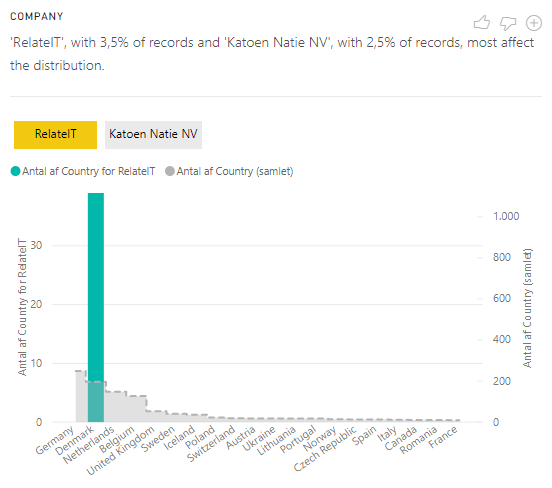
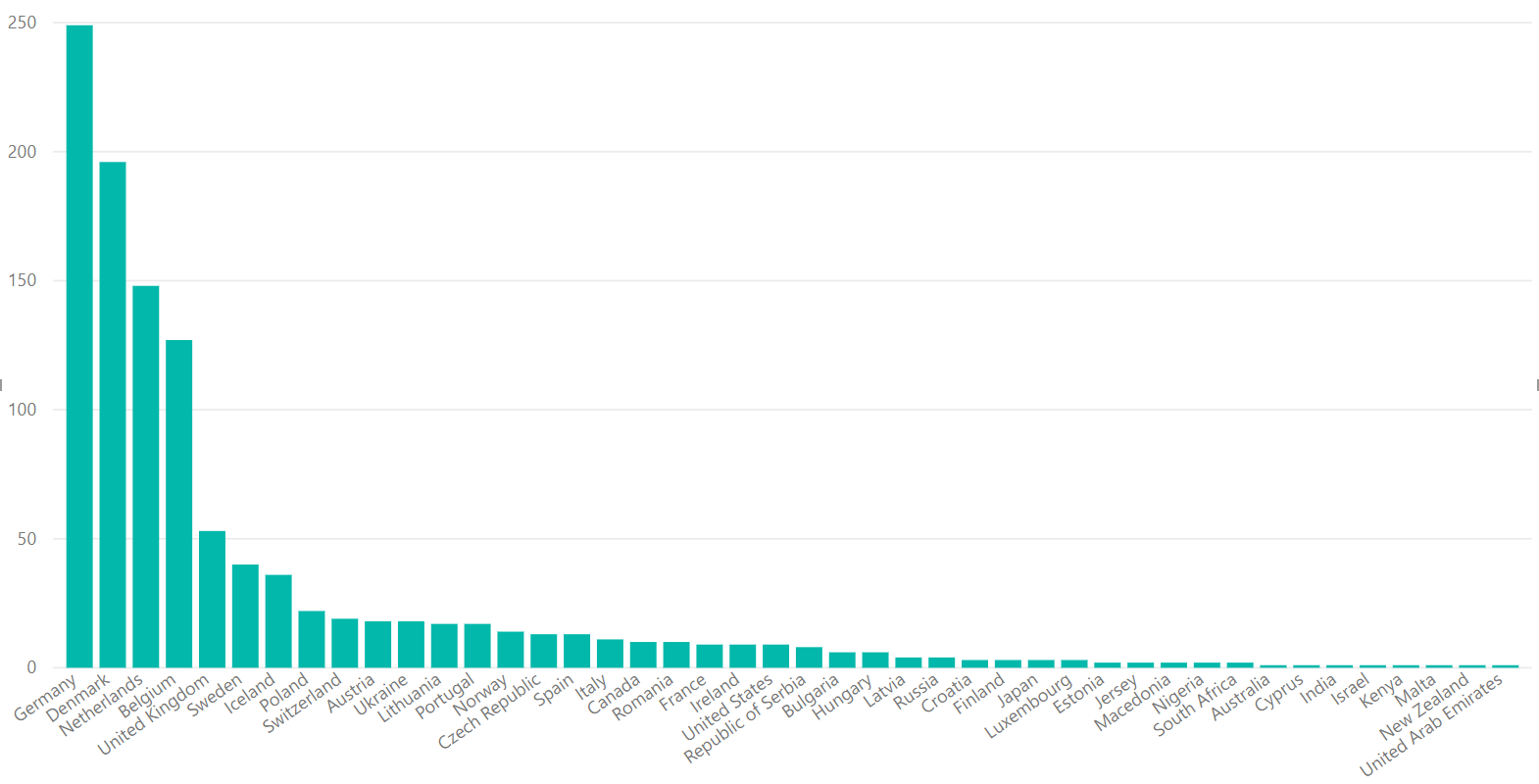
And did you think I would just post the table data? Nope, I installed Power BI Desktop, added the OData connector for Business Central (Local) and did a bit of data beautifying.
The germans rule.
Apparently RelateIT brought an army this year.
TL;DR
If you need one frase to help minimize the queue at the bar, just yell (Warning, havn’t used my german seriously, in about 20 years):
“Die Leute am Continia Stand sagen Deutsche sind scheiße Fußballer.”
C/AL Code: https://www.dropbox.com/s/3c3uka3lncceeeh/WebScraper.txt?dl=1