AL Perf v2 Drops Friday. Here's What Changed.
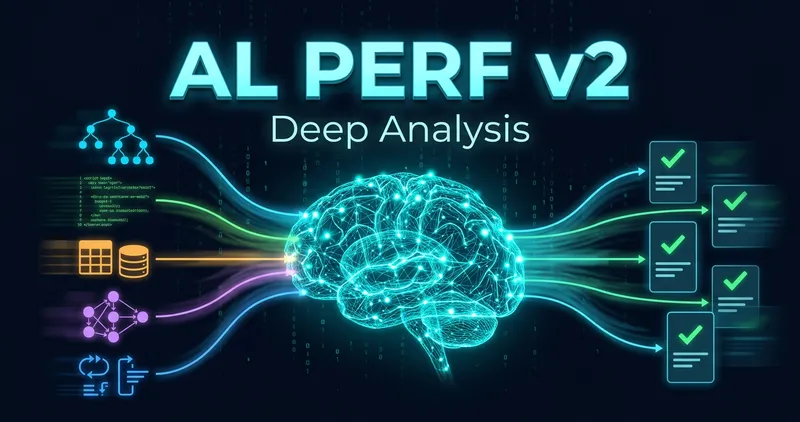
The biggest change: the AI can now read your call tree. Here’s why that matters, and what it took to get there.
The first version worked like this: check the profile for known performance anti-patterns, summarize the top hotspots, send that to the AI, get back a narrative explanation. It worked well. It could connect dots between findings, explain why something was slow, and prioritize where to start.
But it had a blind spot. The AI never saw the call tree.
It knew that GetFilesInDir took 10 seconds, and it knew that Setup was being called suspiciously often. What it couldn’t see was that GetFilesInDir calls Setup 50 times, because the call tree was stripped before anything reached the AI. The pattern detectors caught the symptom. The AI couldn’t reason about the cause.
That’s what version 2 fixes.
What changed
The original analysis sends a summary of the top hotspots and patterns. The AI narrates and contextualizes. It does that well.
Version 2 sends a lot more. Instead of just the summary, it also sends the call tree (who calls whom and how often), the actual source code of the hotspot methods, SQL queries grouped by table, and how many loops and record ops each method has.
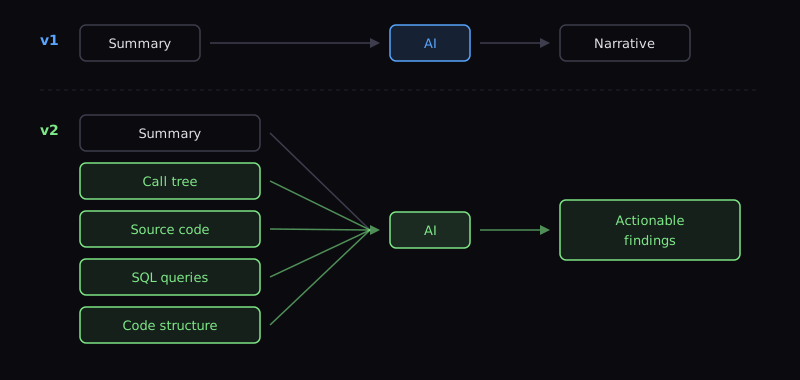
The call tree is the big one. When the analyzer sees that ProcessOrder calls CompanySetup.GET on every iteration, it can say “this returns the same row every time, read it once before the loop.” That’s not something the pattern detectors express, and it’s not something you can infer from a flat list of hotspots.
The SQL grouping enables a different class of finding entirely. When three different extensions all hit the same table with similar queries, that’s invisible in a per-method view. Grouped by table, it jumps out.
How well does it work
I didn’t want to ship this on vibes, so I did what any reasonable person would do: ran a 15-configuration A/B test across five real production profiles with blind comparisons. You know, just a casual weekend experiment. Well, a weekend in the old days. With the magic of AI, 4 hours of automated testing in Claude Code using an agent and the right prompt.
The short version: Sonnet with the right data beats Opus without it, every time.
| Config | W/L/D vs Opus | Sonnet avg | Opus avg |
|---|---|---|---|
| Baseline (no extra data) | 3-2-0 | 8.2 | 8.0 |
| + SQL patterns | 5-0-0 | 8.7 | 7.9 |
| + Call graph | 5-0-0 | 8.3 | 7.8 |
| + AST summaries | 5-0-0 | 8.3 | 7.9 |
| + All three combined | 5-0-0 | 8.6 | 7.8 |
| + All three + prompt tuning | 5-0-0 | 9.05 | 8.47 |
AST summaries = the code structure parsed from your AL source using tree-sitter-al: loop counts, record operations, nesting depth per method.
The final configuration scores 5-0-0 against Opus. Sonnet consistently finds things Opus misses. The average score of 9.05 is a big jump from 8.0. Opus gives generic advice (“look at this hotspot, it takes a lot of time”) while Sonnet says “this method is called 50 times in a loop but the result never changes, cache it.” One of those is useful over lunch. The other is useful in your IDE.
The prompt matters (but not how you’d expect)
I also tested different prompts. The counterintuitive finding: adding rules to the prompt makes the output worse. Adding hints makes it better.
Early iterations added things like “every number MUST be traceable to the profile data” and “limit findings to 3-5 for cold-cache profiles.” These made Sonnet follow rules instead of thinking. The best findings from the untuned prompt all disappeared when the rules went in. Turns out, telling an AI to be careful is a great way to make it boring.
The winning prompt does three things:
- Data-aware hints: tells the AI what each data section contains and what to look for
- Expanded finding range: 5-15 findings instead of 3-10, giving the AI room to be thorough without padding
- Cross-extension focus: look for redundant work across ISVs, extension overhead on hot paths, implicit JOINs from table extensions
All three are expansive (“look at this, consider that”) rather than restrictive (“don’t do this, limit that”). That distinction turned out to be the whole game.
What it costs
On real production profiles, a full analysis costs about $0.50 per profile with Sonnet. Opus costs $1.40 for worse results. It’s not that Opus is bad, it’s just too creative. And why not save a buck when you can.
What it finds
Here are real findings from production profiles that only version 2 catches. The original analysis can’t find these on its own. It needs the call tree and source code to work with.
Redundant setup calls: Setup.GET called 50 times inside a loop when the result never changes between iterations. Cache the result before the loop.
Cross-extension table duplication: Three different extensions subscribing to the same event and independently querying the Sales Line table. You can see the same table hit from three different apps.
OUTER APPLY elimination: An ISV’s table extension forces an OUTER APPLY on every Sales Line query. Adding SetLoadFields for only the base fields you actually need eliminates the JOIN entirely.
Expensive code shapes: A method with 3 nested loops and 5 record ops in loops that eats 94% of total time. The code structure explains the runtime cost, and the fix is to pre-load data before the outer loop.
Each finding references specific methods, call counts, and time percentages from the profile. The AI is told not to repeat anything the pattern detectors already found. No double-counting, no filler.
Try it
Drop your .alcpuprofile on alperf.sshadows.dk or use the BC companion extension. Deep analysis runs automatically, no configuration needed.
Without AL source files, you still get cross-method and anomaly analysis. Upload a source .zip alongside your profile and you also get business logic review and concrete code fixes.
Note: The source code is on GitHub. Bring your worst profiles.
A feedback button is coming with version 2. Every profile is different, and I can’t test against all of them. If the AI gets something wrong, misses something obvious, or gives you a finding that’s technically correct but useless in practice, hit the button. That’s how the analysis gets better over time.